
SSH access
Paron signs in to a machine over SSH as one user of that machine. An SSH connection has two checks, and each one uses a different key.
| Check | What proves it | Where it comes from |
|---|---|---|
| Paron verifies the machine | the host key of the machine | You copy the public host key from the machine into Paron. |
| The machine verifies Paron | a key pair or a password | The machine must accept the public key or the password. |
The host key is not a credential. It gives no access to the machine.
Host key
Section titled “Host key”Paron uses the host key to verify the identity of the machine. Paron does not accept an unknown key on the first connection. You enter the key when you add the machine, and Paron connects only if the machine presents the same key.
To get the key, run ssh-keyscan from a computer that can reach the machine:
ssh-keyscan machine.example.comFor a tunneled machine, run it on the machine itself:
ssh-keyscan localhostThe output has one line for each host key of the machine: the host name, the key type and the key.
Ignore the lines that start with #.
machine.example.com ssh-ed25519 AAAAC3NzaC1lZDI1NTE5AAAAI...machine.example.com ecdsa-sha2-nistp256 AAAAE2VjZHNhLXNoYTItbmlzdHAyNTYAAAAI...machine.example.com ssh-rsa AAAAB3NzaC1yc2EAAAADAQABAAABgQC...Select one line, and copy its key type and its key into the field Host key. Paron then asks the machine for a key of that type.
Paron accepts Ed25519, ECDSA and RSA host keys.
If the machine later presents a different key, Paron does not connect, and the error is
the host key does not match the one on record. If the change is expected, for example after a
reinstallation, edit the machine and replace the host key.
Authentication
Section titled “Authentication”Select one of three methods for each machine.
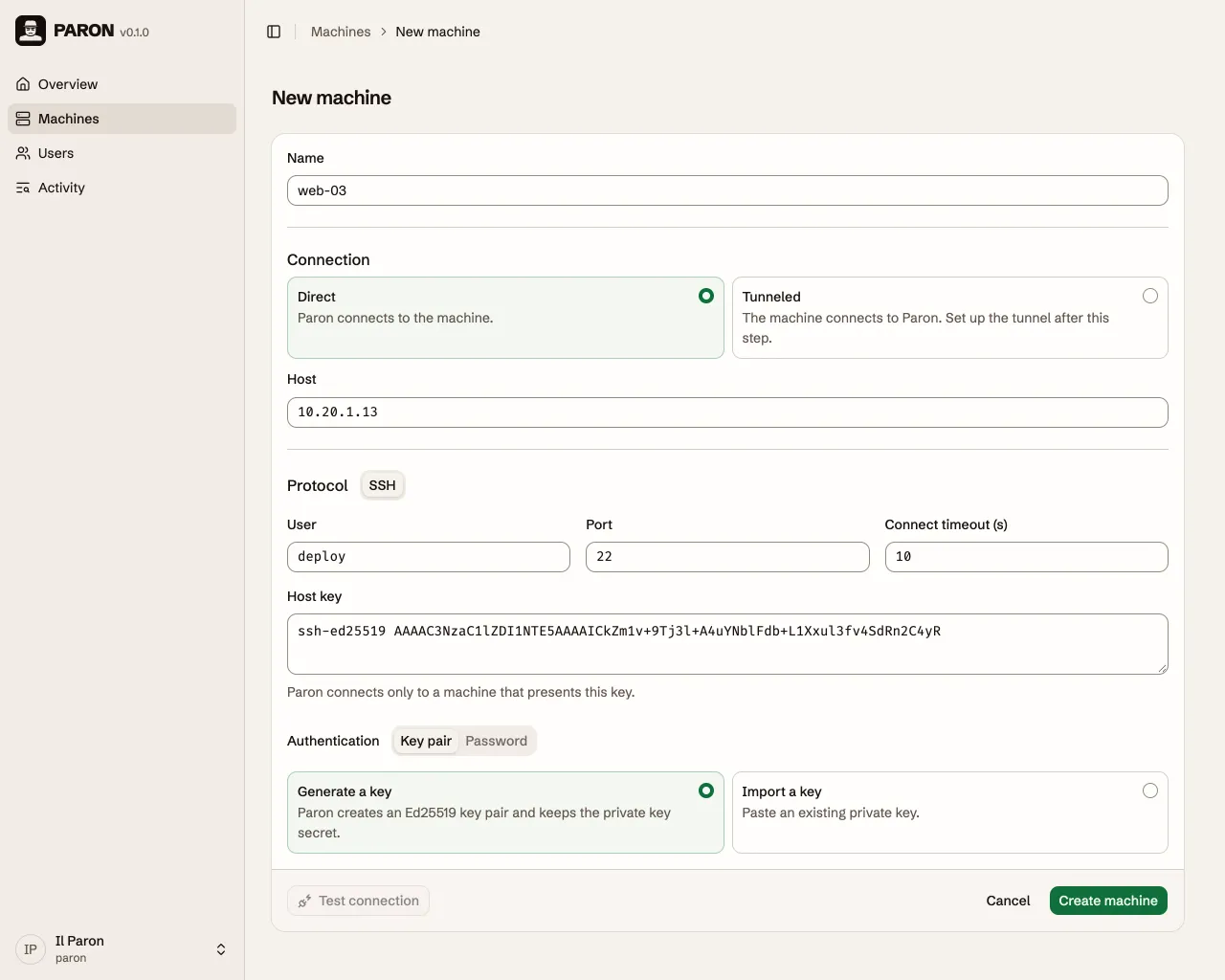
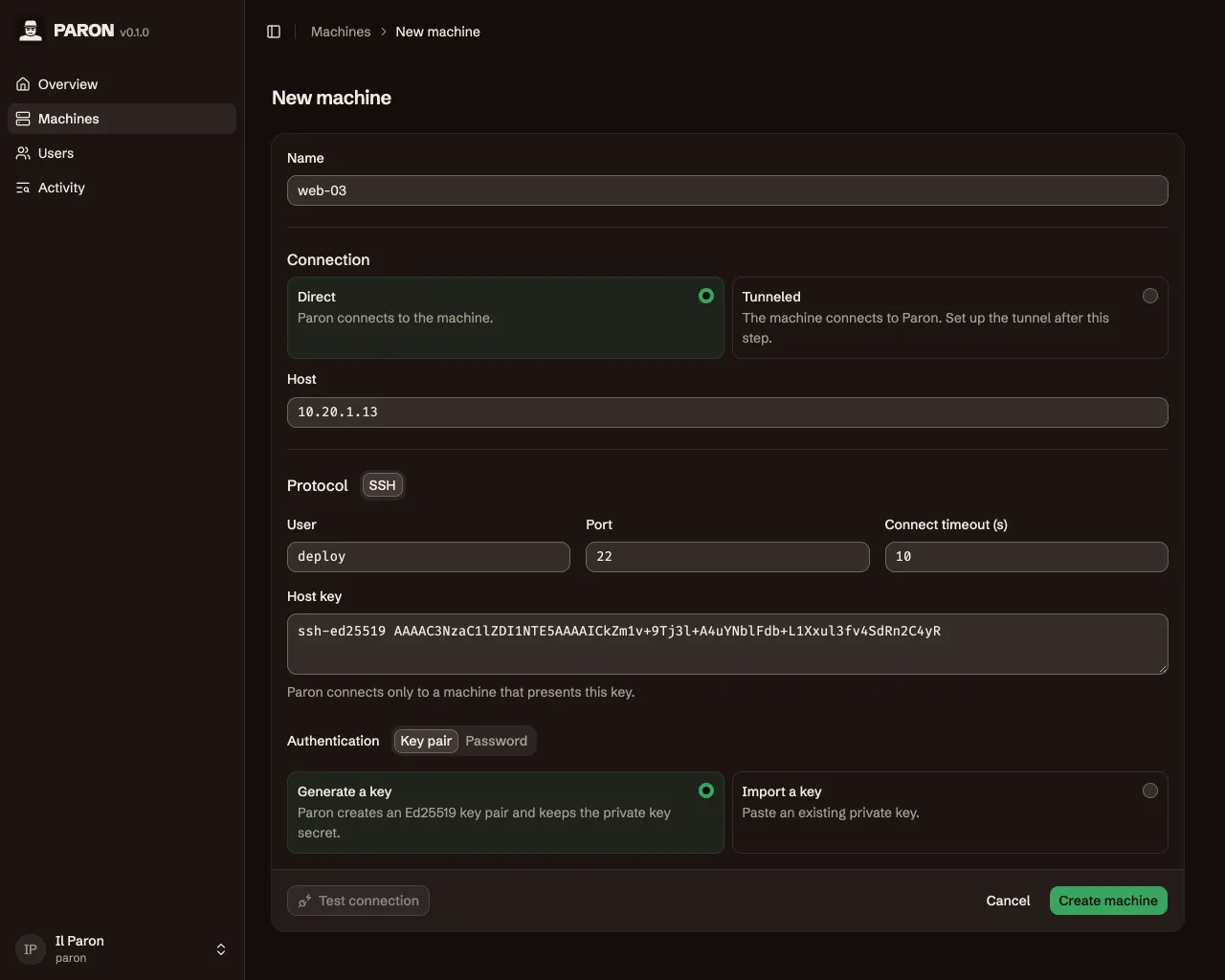
Generated key
Section titled “Generated key”With Generate a key, Paron creates an Ed25519 key pair when you create the machine. Paron stores the private key and does not show it.
- Create the machine.
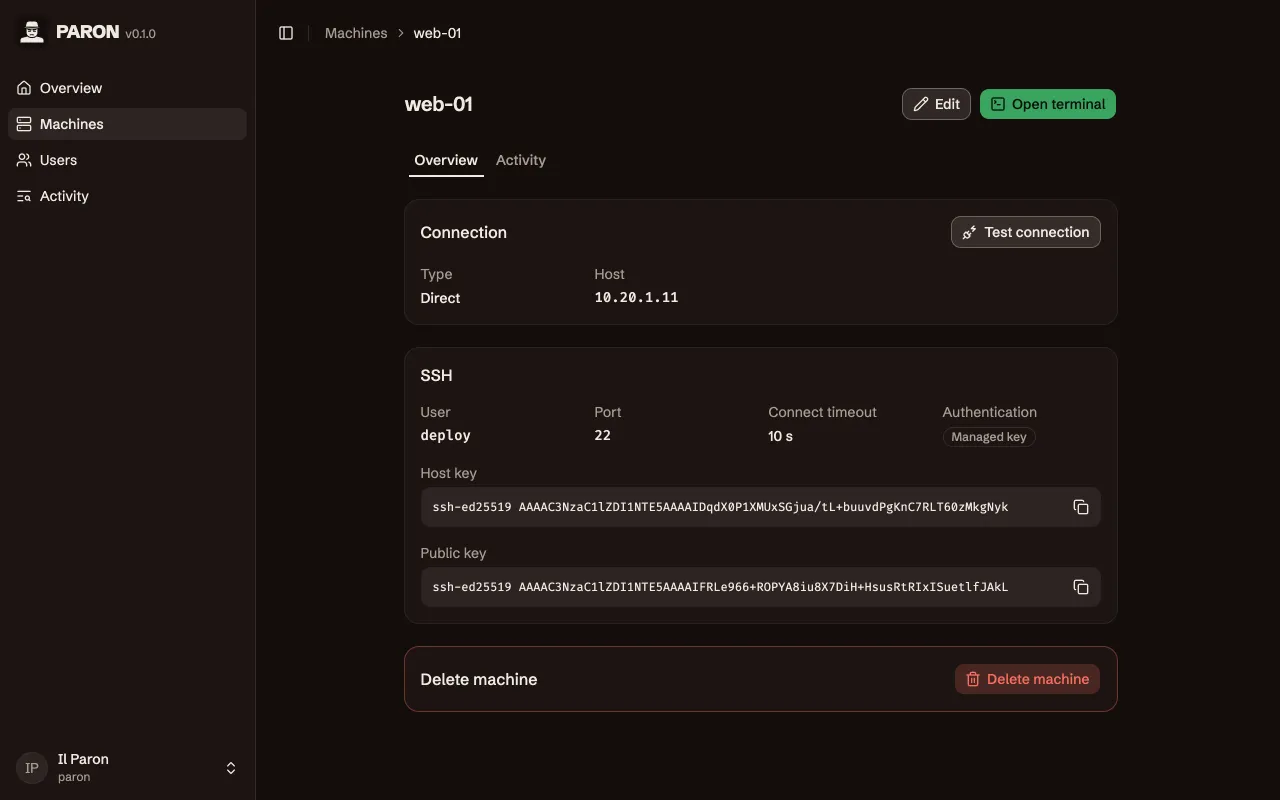
- Open the machine. In the card SSH, copy the Public key.
- On the machine, add that line to the file
~/.ssh/authorized_keysof the user.
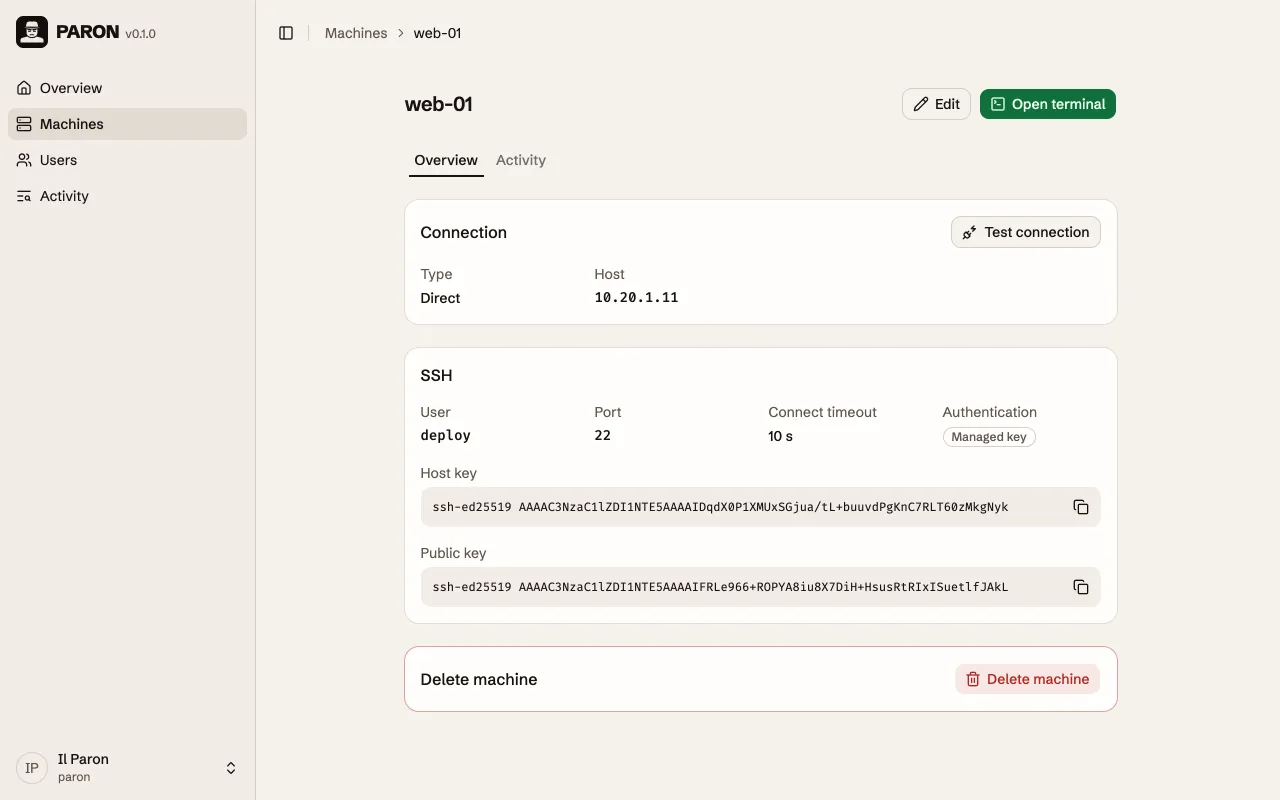
You cannot test the connection before you create the machine, because the key does not exist yet.
Imported key
Section titled “Imported key”With Import a key, you paste a private key. The key must be:
- in OpenSSH format, as
ssh-keygenwrites it. The file starts with-----BEGIN OPENSSH PRIVATE KEY-----. - of the type Ed25519, ECDSA or RSA.
- without a passphrase.
Password
Section titled “Password”With Password, Paron signs in with the password of the user.
Storage of secrets
Section titled “Storage of secrets”- Paron encrypts each password and each private key before it stores it. The key for this comes
from the file
master.keyin the data directory. - After you save a password or a private key, Paron does not show it. Only the public key is visible.
- The host key, the user and the host are not secrets, and Paron stores them without encryption.
Changes to a machine
Section titled “Changes to a machine”| Change | Effect |
|---|---|
| You replace the key or the password | Paron uses the new one from the moment you save, and closes the open terminals. If the machine does not accept it, Paron cannot connect. |
| You replace the host key | If the machine uses a password, you must type the password again. Paron closes the open terminals. |
| You change the host, the port or the user | Paron closes the open terminals. |
| You change a tunneled machine to Direct | Paron revokes the tunnel access of the machine and closes its open terminals. |
| You change a direct machine to Tunneled | Paron closes the open terminals. It cannot reach the machine until you set up the tunnel. |
| You change the name or the connect timeout | The open terminals stay open. |
| You delete the machine | Paron also deletes its credentials. You cannot restore them. Paron closes the open terminals of the machine. |
© 2026 Nicola Bovolato. Paron is source-available under the PolyForm Shield License 1.0.0.