
Set up a tunnel
You need the role Administrator or Operator.
Before you start
Section titled “Before you start”- In the web UI, add the machine with the connection Tunneled.
- Install the
paronprogram on the machine. See Install with the binary. - The machine must be able to reach the server at the address that you use for the web UI.
Get the command
Section titled “Get the command”- Open Machines. In the menu of the machine, select Set up tunnel.
- Paron shows a command with a token. Copy it.
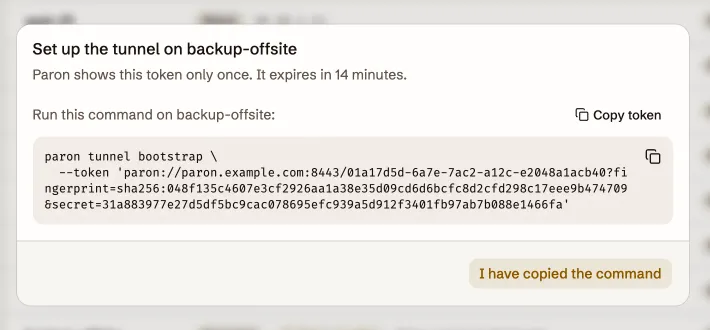
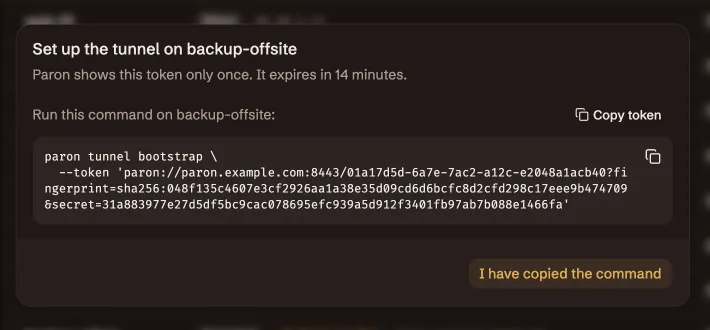
Paron shows the token only once. The token is valid for 15 minutes and for one use.
Run the command on the machine
Section titled “Run the command on the machine”paron tunnel bootstrap --token 'paron://…'At the question about ports, enter the SSH port of the machine. The default SSH port is 22. The tunnel refuses a connection to a port that is not in the list. If the SSH port is not in the list, Paron cannot open a terminal. See Ports and sockets.
The command then registers the machine with the server. If you accepted the daemon definition, the tunnel runs as a system daemon and starts with the system.
The states of a tunnel
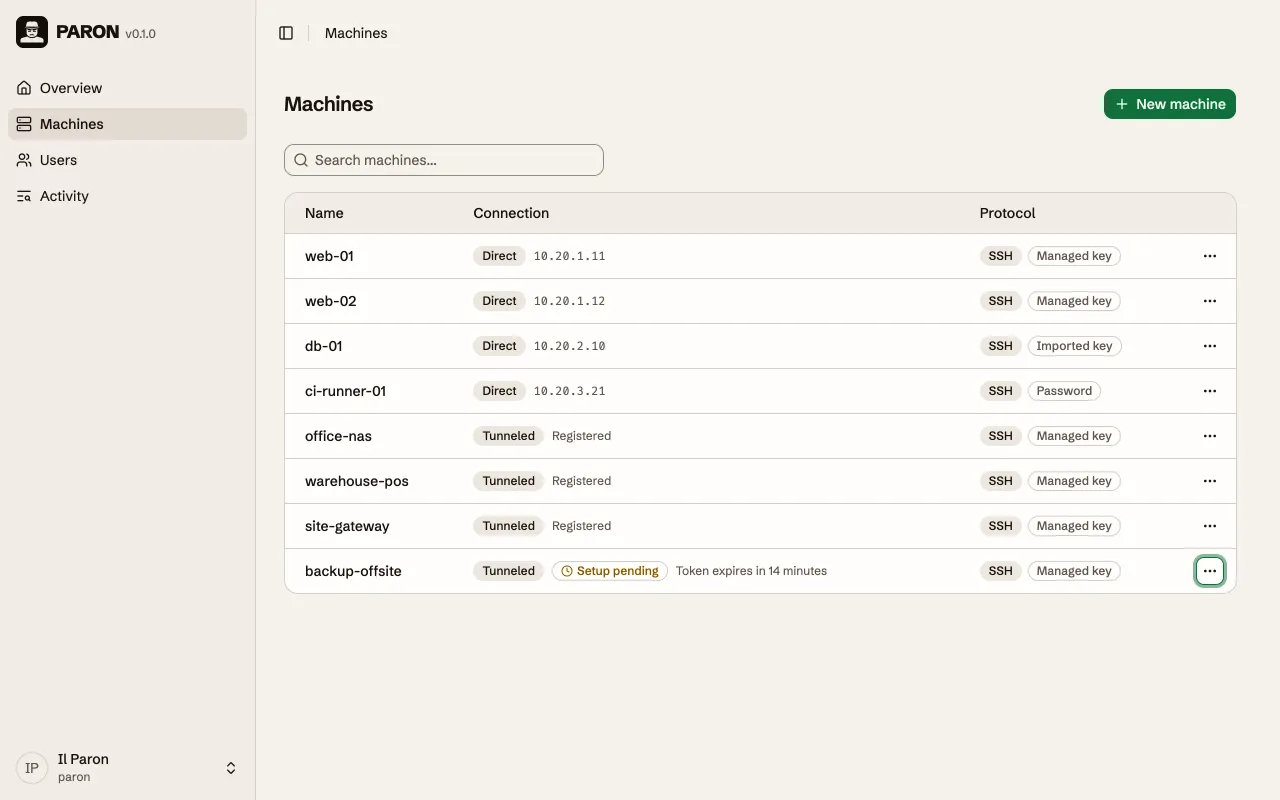
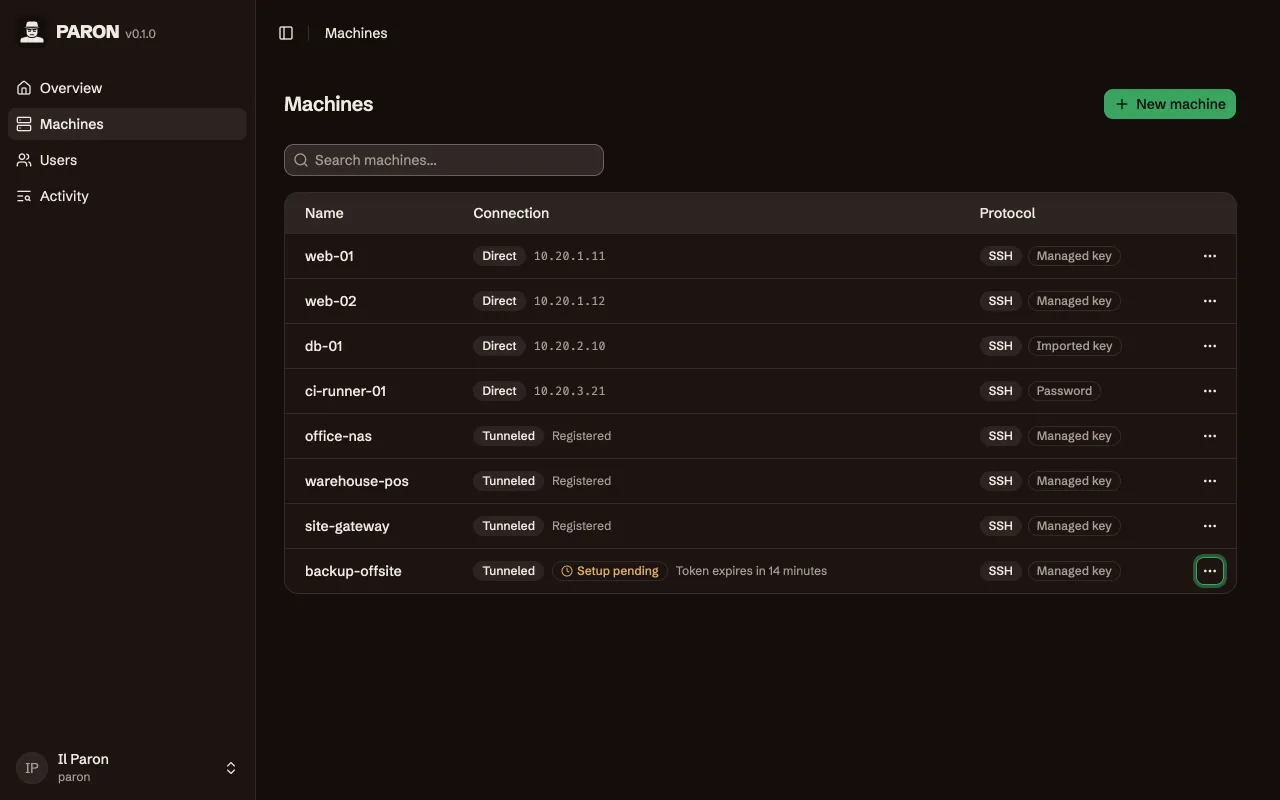
Section titled “The states of a tunnel”The list of machines shows the state.
| State | Meaning |
|---|---|
| Not set up | No token exists. Select Set up tunnel. |
| Setup pending | A token exists, and the machine did not use it yet. |
| Token expired | The 15 minutes ended. Select Set up tunnel again. |
| Registered | The machine used the token. Paron can reach it when the tunnel runs. |
© 2026 Nicola Bovolato. Paron is source-available under the PolyForm Shield License 1.0.0.