
Users and roles
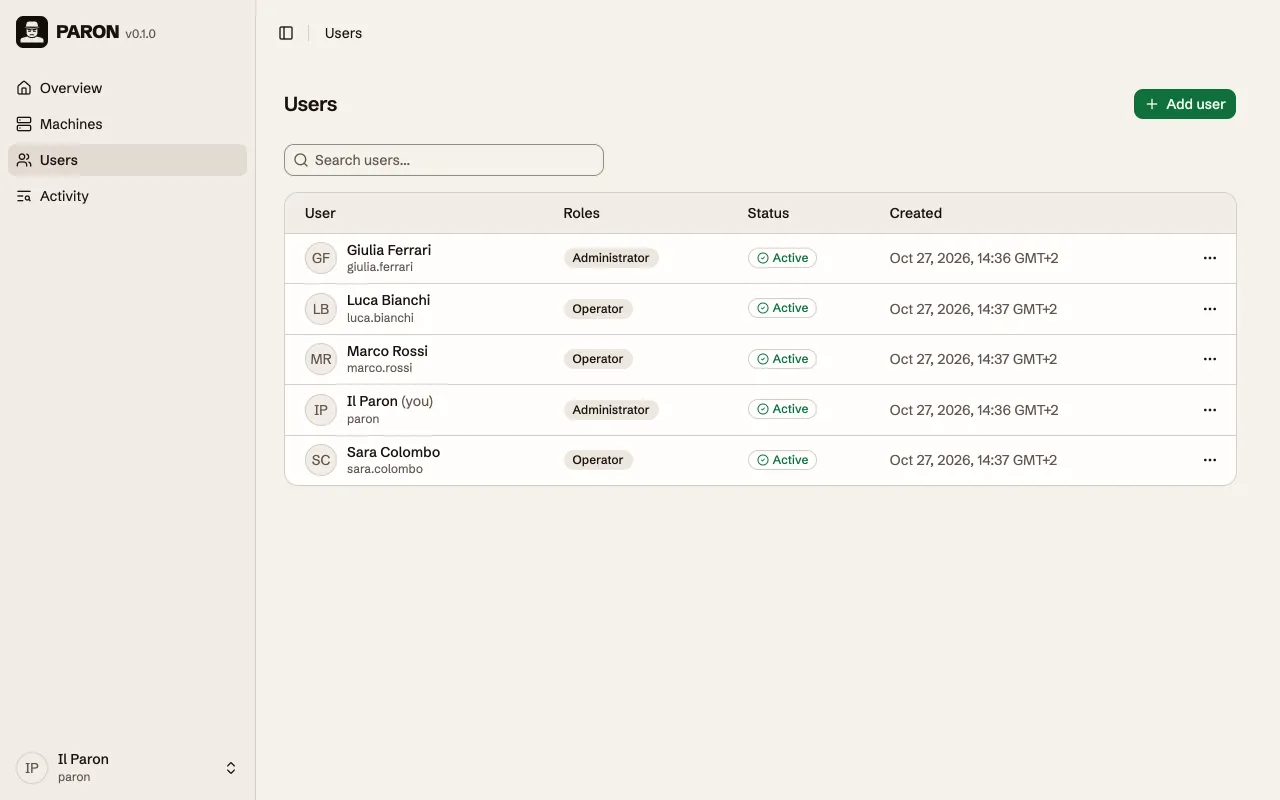
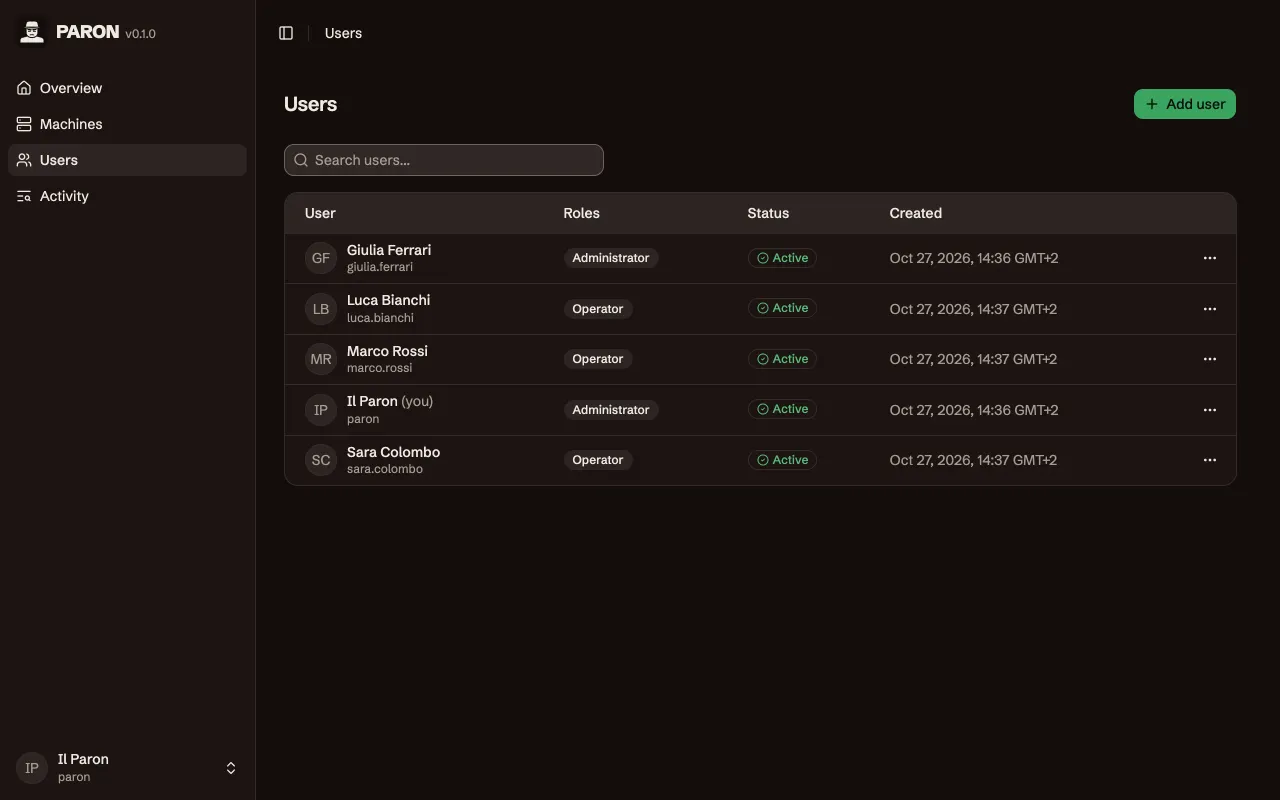
A role is a set of permissions. A user can have more than one role, and then has the permissions of all of them. A user with no role can only sign in and change their own account.
Permissions of each role
Section titled “Permissions of each role”| Action | Administrator | Operator |
|---|---|---|
| See the machines | yes | yes |
| Add, change and delete machines | yes | yes |
| Test a connection and open a terminal | yes | yes |
| Set up, cancel and revoke tunnels | yes | yes |
| See the users | yes | no |
| Add, change, suspend and delete users | yes | no |
| Create a recovery link for a user | yes | no |
The server checks the permissions. The web UI does not show the actions that a user cannot do.
Paron always keeps one active user who can change users. You cannot delete or suspend that user, or remove the role that gives this permission.
Sign-in methods
Section titled “Sign-in methods”Each user manages their own sign-in methods in the card Sign-in methods on My account.
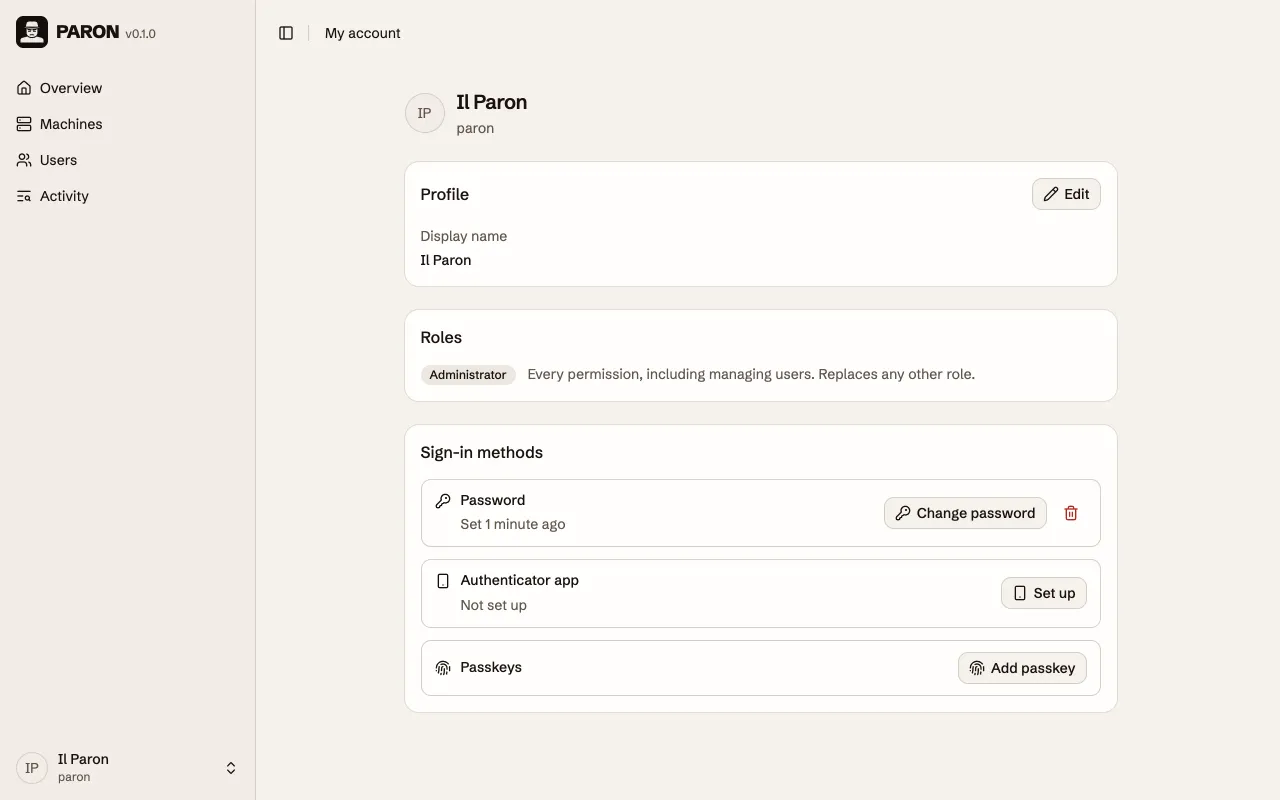
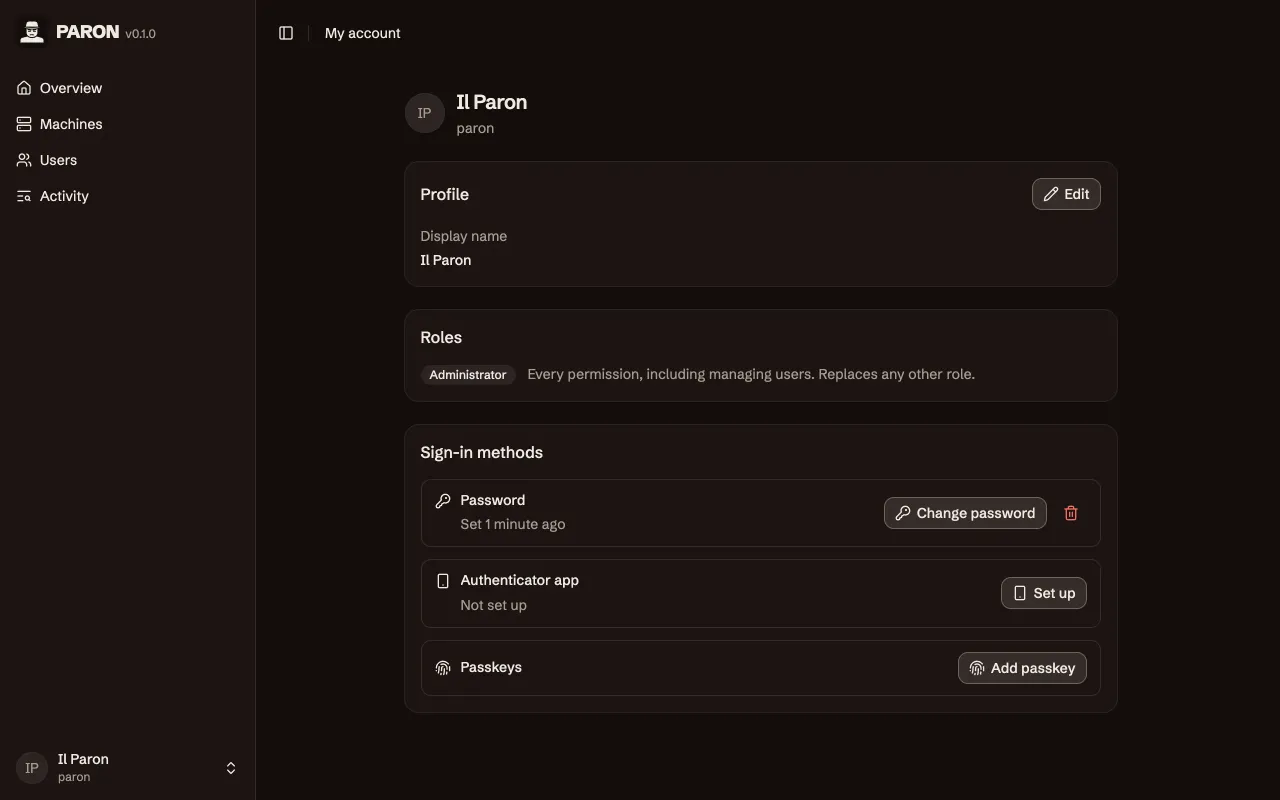
- Password: the user name and a password.
- Authenticator app: an app that shows a six-digit code that changes each 30 seconds, for example Google Authenticator, Microsoft Authenticator, 1Password or Bitwarden. Scan the QR code, then type the code. The app shows the entry as Paron, with your user name and the address of Paron.
- Recovery codes: ten codes that Paron shows one time, when you add the authenticator app. Use a code in place of the code of the app. Each code works one time. Select New codes to get ten new codes. When you remove the authenticator app, Paron also removes the recovery codes.
- Passkey: a key that your device keeps. You unlock it with your fingerprint, your face or the PIN of the device. Select Add passkey, and the browser asks for the passkey. A new passkey has the name Passkey. Select the pencil to give it a name, for example the name of the device. Synced shows for a passkey that your password manager copies to your other devices. A user can have up to 10 passkeys.
To sign in with a passkey, select it in the list under Username, or select Sign in with a passkey. A passkey is enough to sign in. It does not need the password.
A passkey works only when you open Paron at a domain name, for example paron.example.com. Browsers
do not permit passkeys at an IP address such as 10.0.0.5.
A passkey belongs to a domain. A passkey that you add at paron.example.com also works at
lan.example.com, because both are names in example.com. It does not work at paron.local or at
localhost: there, add a different passkey, or sign in with the password. For one passkey on the
LAN too, use a name in your domain on the LAN, not a .local name or an IP address. Every name in
the domain can ask for these passkeys, so use Paron only on a domain that you control.
A user who signs in only with a passkey can sign in only at the names of the domain of that passkey. To sign in at the other names too, add a password.
Two-factor authentication
Section titled “Two-factor authentication”When a user has an authenticator app, the password alone is not enough. After the password, Paron asks for a code of the app, a recovery code, or a passkey. Without an authenticator app, the password alone is enough. A passkey does not turn on two-factor authentication.
Sign in without a password
Section titled “Sign in without a password”A user with a passkey can remove the password: select the bin next to Password. Then the user signs in only with the passkey. To add a password again, select Set password. Paron does not let you remove the last sign-in method.
Confirm that it is you
Section titled “Confirm that it is you”Some actions need a sign-in in the last 15 minutes:
- A change to your own sign-in methods.
- Create recovery link for a different user.
After 15 minutes, Paron asks you to sign in again before the action continues.
Recovery links
Section titled “Recovery links”An administrator does not set the password of a different user. Instead, Paron gives a recovery link, and the user sets up the account with it:
- When you add a user, Paron shows the link.
- When a user forgot the password, lost a device, or somebody else can sign in to the account, select Create recovery link on the page of the user.
Create recovery link removes all sign-in methods of the user and ends all the sessions of the user. Thus, a person who has access to the account cannot use it any more.
Paron shows the link only one time. Anyone who has the link can set up the account.
A user who forgot the password but still has a passkey does not need a link. The user signs in with the passkey and sets a new password on My account.
The card Access on the page of a user shows which sign-in methods the user has.
Use the link
Section titled “Use the link”- The user opens the link. If the browser is signed in as a different user, the page asks to sign out first.
- The user types a new password. When Paron is open at a domain name, the user can select Use a passkey instead and add a passkey.
- Paron opens the sign-in page, and the user signs in.
- On My account, the user adds the other sign-in methods again.
| Rule | Value |
|---|---|
| The link expires | After 24 hours |
| Uses | One |
| Links for each user | One. A new link replaces the old link. |
| Suspended user | Can set up the account, but can sign in only after you activate the user. |
| Your own account | Not permitted. Use My account. |
Manage users on the host
Section titled “Manage users on the host”Use these commands when no administrator can sign in. For example, when the only administrator forgot the password, or when an attacker has the account of an administrator.
Stop the server first, then run the commands on the server host.
paron server users list --data <DIR>paron server users lockdown --data <DIR>paron server users reset <USERNAME> --data <DIR>listshows the user name, the status and the roles of each user.lockdownsuspends all users. Nobody can sign in until you reset an account.resetreplaces all sign-in methods of the user with a new password, and activates the user.
In Activity, the entries of these commands show System.
If you cannot sign in, and no other administrator can help:
- Stop the server.
- Run
resetfor your own account. - Start the server, and sign in with the new password.
If an attacker has the account of an administrator:
- Stop the server.
- Run
lockdown. - Run
resetfor your own account. - Start the server, sign in with the new password, and look at Activity.
- Delete the accounts that the attacker used, or remove their sign-in methods. Then activate the other users again.
Sessions
Section titled “Sessions”A sign-in starts a session in one browser.
| Event | Sessions that end |
|---|---|
| The user signs out | The session of that browser |
| The user changes their own sign-in methods | All the other sessions of the user |
| An administrator suspends or deletes the user | All the sessions of the user |
| An administrator creates a recovery link | All the sessions of the user |
A paron server users command changes the user |
All the sessions of the user |
A session also expires after some time, or when it is not used.
Open terminals
Section titled “Open terminals”A terminal belongs to the session that opened it. Paron closes the terminal, and stops the command in it, when:
- The session ends.
- A change of roles removes the permission to open a terminal.
- The terminal has no input and no output for a long time.
- The machine is deleted, or it changes in a way that closes its terminals.
Sign-in limits
Section titled “Sign-in limits”For each address
Section titled “For each address”Paron limits the sign-in attempts from one client address:
- An address can make 25 attempts quickly. After that, it can make 1 attempt each 12 seconds.
- A sign-in counts one attempt to start, and one for each password, code or passkey, also when it is correct.
- Changes to your own sign-in methods count in the same limit.
When an address is over the limit, the sign-in page shows how long to wait. Behind a proxy, see Trusted proxies.
For each user
Section titled “For each user”Paron also counts the wrong attempts for each user, from all addresses:
- After 5 wrong passwords, each next attempt waits two times longer than the attempt before, up to 15 minutes. Wrong recovery codes count in the same way.
- A correct sign-in, or 12 hours with no wrong attempt, sets the count to zero.
- After 10 wrong codes of the authenticator app, Paron accepts no code of the app for 24 hours. A passkey or a recovery code still works.
- A sign-in with a passkey does not wait.
When a browser signs in, Paron gives it a device cookie for that user. The browser keeps the cookie after the sign-out, until a different user signs in on it. The wrong attempts from a browser with this cookie have their own count. Thus, a person who tries passwords for a user cannot stop that user from signing in on a browser that the user used before.
A sign-in must finish in 5 minutes. After that, the user starts again.
© 2026 Nicola Bovolato. Paron is source-available under the PolyForm Shield License 1.0.0.